


CS2
How to Inspect CS2 Skins Before Buying | Skinport
Learn how to inspect CS2 skins before buying. Check skins in-game, view patterns, float and stickers, and compare individual CS2 skins on Skinport.
Written by Philipp
3D
ViewerSkinport
When buying a CS2 skin, the details matter. Two skins with the same name and wear level can still look noticeably different because of their float value, pattern, stickers, and individual wear.
That’s why knowing how to inspect CS2 skins before buying them can help you find the exact item you want. On Skinport, you can take a closer look at individual skins before making a purchase — from checking them in a 360° viewer to inspecting the actual skin directly in Counter-Strike 2.
Here’s how it works.
How to Inspect CS2 Skins on Skinport
If you find a skin you like on Skinport, open its item page to see more details about the specific item listed for sale.
Instead of relying only on a generic image of the skin, you can inspect the actual item. This is particularly useful for skins where the appearance can vary depending on factors such as:
Float value and wear
Pattern
Sticker placement
Sticker combinations
Visible scratches and other wear
Skinport's 360° skin viewer lets you rotate the item and check it from different angles directly in your browser.
This gives you a much better idea of what the individual skin looks like before buying it.
Inspect CS2 Skins Without Launching the Game
Traditionally, if you wanted to know exactly what a CS2 skin looked like, you had to use an Inspect in Game link and launch Counter-Strike 2.
With the Skinport 3D Viewer, that extra step is no longer necessary.
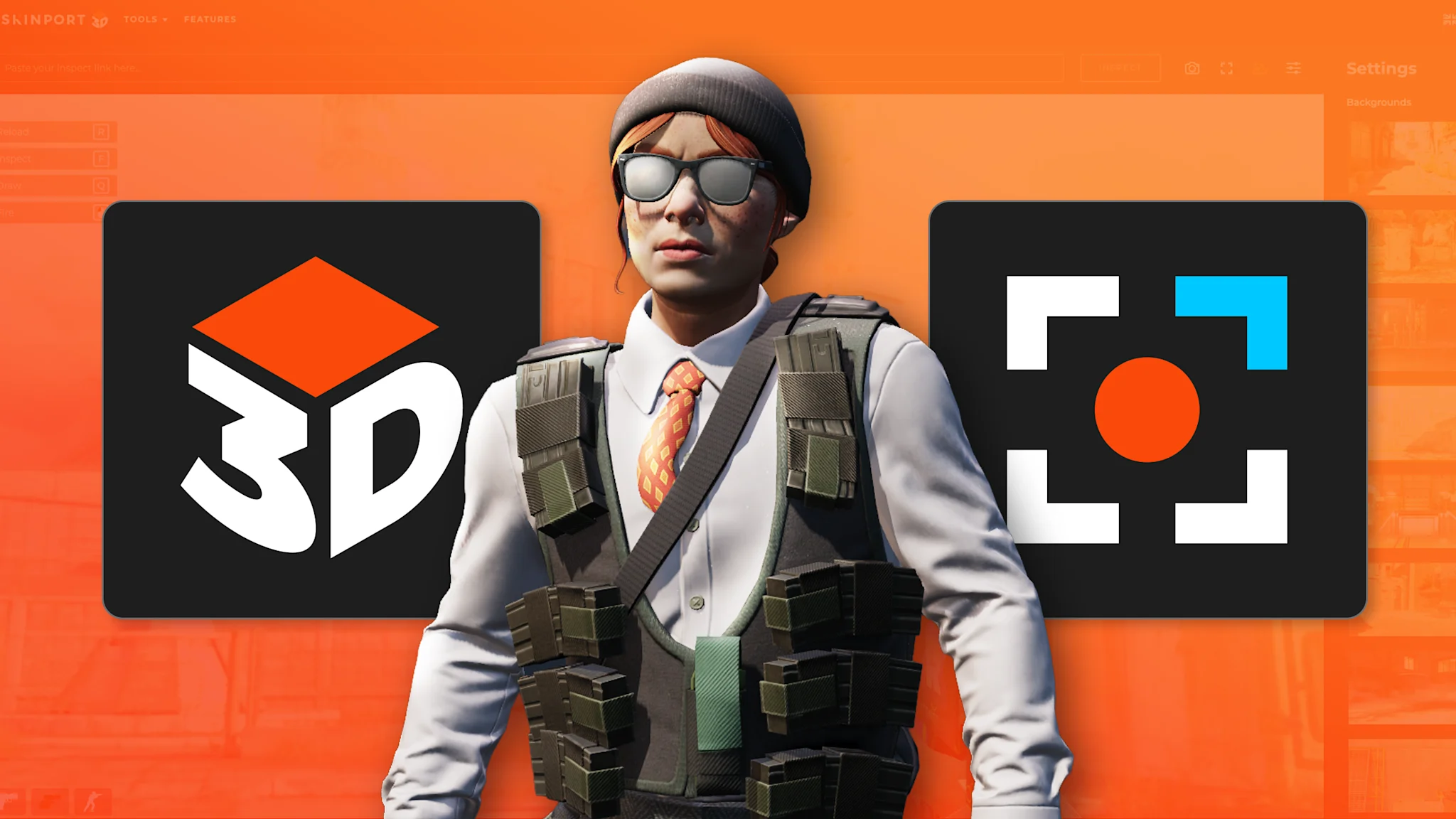
The 3D Viewer lets you inspect CS2 skins directly in your browser. You can rotate the weapon, zoom in on specific areas and take a closer look at the skin's pattern, wear and stickers — without opening CS2.
This makes comparing different listings much faster and more convenient, especially when you're looking through several versions of the same skin.
Try the Skinport 3D Viewer: https://skinport.com/3d
Why You Should Inspect CS2 Skins Before Buying
Some CS2 skins can vary significantly from one item to another.
A skin's float value determines its level of wear, while certain finishes can look different depending on their pattern index. Stickers can make individual listings even more distinctive.
That means two listings for the same skin aren't necessarily visually identical.
By inspecting a CS2 skin before buying it, you can compare individual items and choose the version that matches the look you're searching for.
This can be especially useful when looking for:
Skins with specific patterns
Low-float skins
Skins with desirable sticker combinations
Items with particularly clean-looking wear
Knives and gloves where patterns or wear can make a noticeable visual difference
Create a CS2 Skin Screenshot
Want to get an even closer look at a skin or create an image you can share with others?
You can use the Skinport CS2 Skin Screenshot Tool to generate high-quality screenshots of CS2 skins.
A screenshot can make it easier to examine smaller details and see how the complete item looks. It's also useful if you want to show off a skin, share it with friends, or compare several items before deciding which one to buy.
Compare Different CS2 Skins
Inspecting just one listing is useful, but comparing several items can be even better.
If multiple versions of the same skin are available, open the individual listings and compare their float values, patterns, stickers, wear, and overall appearance.
Even skins with the same exterior condition can have visible differences.
For pattern-based skins in particular, inspecting multiple listings can help you find an item with the exact look you prefer rather than simply choosing the first available one.
Find the CS2 Skin That Fits Your Inventory
A CS2 skin is more than its name and price. Float, pattern, stickers, and wear can make every individual item look slightly different.
Knowing how to inspect CS2 skins makes it easier to understand those differences before buying.
With the Skinport 3D Viewer, you can inspect individual CS2 skins from different angles, zoom in on the details and compare your options directly in your browser — without having to launch CS2.
Find a skin you like, inspect it in 3D, and see exactly what you're getting before adding it to your CS2 inventory.